 0498 70 98 60
WordPress Backup Strategy: Off-Site Copies, the Right Schedule, and Tested Restores

A hack, a wrong click in the dashboard, or an update gone wrong: the day your site goes down, everything hinges on a WordPress backup that’s complete, recent, and clean, and that someone actually knows how to restore. Too many businesses discover they’re missing one of those four things at the exact moment they need it.
Référenceur is a European digital marketing agency, with offices in Belgium and Luxembourg, that helps retailers, professional firms, nonprofits, and small businesses build a verified, documented backup strategy, and steps in when a compromised WordPress site needs to be brought back without reinstalling the vulnerability along with it.
Check your WordPress site’s security: run a free initial scan right now with the tool below.
This guide is part of our WordPress security guide. You’ll learn what to back up, how often, where to store your archives, and how to avoid the most common trap: the backup that’s already infected.
Two Pieces to Back Up Together: Database and Files
A WordPress site is made up of two separate parts. The database holds your pages, posts, settings, user accounts, and, for an online store, your orders. The files include WordPress core, themes, plugins, media, wp-config.php, and .htaccess.
The official WordPress documentation is emphatic: copying the site folder doesn’t capture the database, which is stored separately. It recommends exporting the database and then the files so they form a matched set, and, when restoring, putting the files back first, then importing the database.
On a site in English and Spanish, translations usually live in the database and in the multilingual plugin’s settings. A simple post export or a copy of the media library is never enough.
Where to Store Backups: Multiple Locations, Separate Credentials
The 3-2-1 rule is a good benchmark: three copies, on two different types of storage, with one kept off-site. The WordPress documentation says much the same thing, recommending several recent backups kept in different places, such as with your host, in cloud storage, and on a local computer.
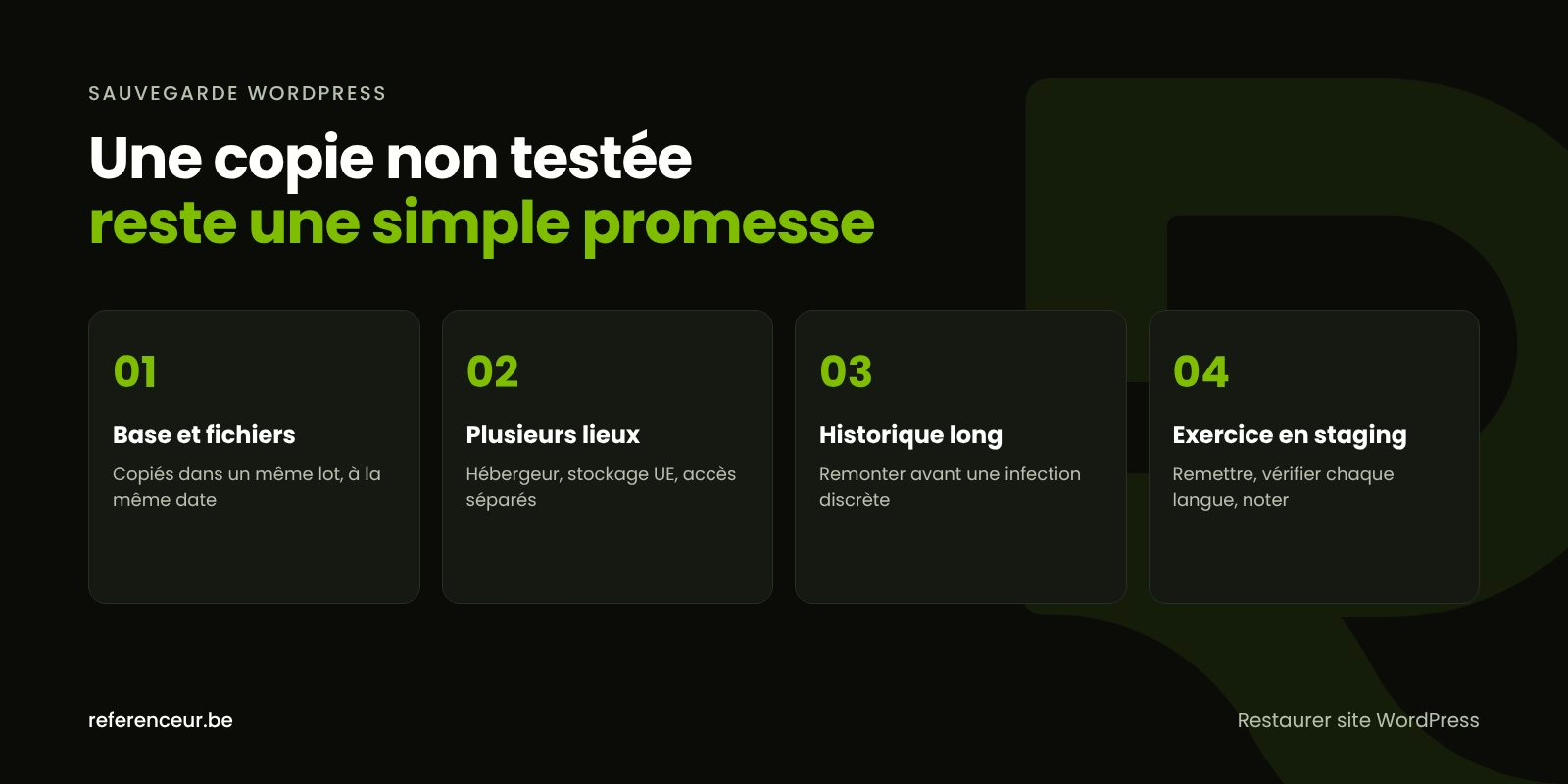
Your host’s automatic backup is valuable but not enough on its own: it depends on the same provider, and often the same login, as the site. An attacker who gets into your hosting control panel can delete it. Add an off-server backup with separate credentials, stored with a reputable provider.
These archives contain the same personal information as the site: customer contact details, form submissions, orders. Encrypt them, limit access to a handful of people, and delete the ones you no longer need.
WordPress Backups and Compliance: Availability Counts, Too
Security isn’t only about keeping data confidential. The NIST Cybersecurity Framework, a widely used U.S. reference, lists “Recover” as one of its core functions, right alongside “Protect” and “Detect.” A tested backup is the most concrete way to show you can restore access to your data after a technical incident, and several state laws require businesses that hold residents’ personal information to maintain reasonable security safeguards.
The flip side: if backup files containing personal information are stolen or exposed, that can trigger state data breach notification laws, which exist in all 50 states and vary in their definitions and deadlines. The FTC’s Data Breach Response: A Guide for Business covers the basics; it doesn’t replace advice from a privacy attorney.
How Often to Back Up, Based on Your Business
The right frequency depends on how much you can afford to lose. The WordPress documentation suggests weekly backups for a small site that rarely changes, daily for a very active one, and always a backup before an update or a migration.
| Type of site | Recommended frequency | What to watch |
|---|---|---|
| Brochure site for a consultant or professional firm | Weekly, plus a backup before every change | Keep several weeks of history, including one off-server copy |
| Restaurant or hospitality business with online reservations | Daily | Reservations received after the last backup would be lost |
| WooCommerce store | At least daily for the database, ideally more often | Note paid orders placed between the backup and the restore |
| Nonprofit with a member area or registrations | Daily | Encrypted backups: they contain member data |
| Multilingual site (English, Spanish, or more) | Daily during content updates | Confirm translations and language settings are included |
For an online store, restoring yesterday’s database can wipe out orders paid in the meantime. Write them down before you act, or restore only the files if the database is clean.
When Your Latest Backup Is Already Infected
An intrusion isn’t always visible the day it happens. A backdoor can sit quietly for weeks before triggering redirects or spam. If you only keep the most recent backups, they may already contain the malicious code.
Restoring that kind of backup gives you the illusion of a clean site, and then the infection comes back. Even a clean backup won’t fix anything if the original vulnerability, often an outdated plugin, is still in place. Before picking a date, try to pinpoint when the intrusion happened using the access logs and file modification dates.
After the site is back online, check the list of administrators with wp user list --role=administrator, then apply patches immediately. If an infection is confirmed, follow our guide WordPress site hacked: what to do and keep a copy of the compromised state as evidence.
Restore a WordPress Site: Practice Before the Emergency
A backup that’s never been tested is just a promise. The official documentation even recommends running a manual backup from time to time to make sure the automated process works. Go one step further and schedule a restore drill in a staging environment, which most hosts provide.
- Pick a backup with a known date and note where it came from.
- Restore the files to the staging environment, then import the database.
- Update the URL of the staging site, for example with
wp search-replace, and block it from being indexed. - Click through the key pages in every language, the forms, the login, and the checkout flow.
- Verify the integrity of WordPress core before declaring the backup clean.
- Log the date, how long the drill took, and any problems you ran into.
wp db export backup-before-changes.sql
tar -czf files.tar.gz wp-content wp-config.php .htaccess
wp db import backup-before-changes.sql
wp core verify-checksums
Run these WP-CLI and tar commands from the site’s root directory. They don’t replace an automated system, but they come in handy for a manual backup right before making changes. Knowing how to restore a WordPress site when things are calm will save you precious time on the day of an incident.
Questions to Ask Your Host or Developer
A backup lets you roll back; it doesn’t prevent an intrusion. It goes hand in hand with securing access, keeping an eye on vulnerable WordPress plugins, and regular WordPress updates. To find out where you stand, ask these questions:
- Where are the backups stored, in what country, and how long are they kept?
- Are the database and files backed up together as a set?
- Can I restore a specific date myself, or do I need to open a ticket?
- Is there a copy outside your infrastructure, with different credentials?
- When was the last restore test?
Set Up Your Backups Over Video Calls
Référenceur works with U.S. businesses remotely: all of our support happens over video calls, at a time that works for both time zones. A kickoff session inventories your site, your hosting, and your existing backups.
The first restore test is done over a shared screen: you follow every step, and you get the procedure in writing. A recorded training session lets you repeat the drill on your own, and a monthly check-in confirms your backups are running smoothly.
Wherever your business is located, our web design and WordPress team applies the same method, in English.
WordPress Backup: Frequently Asked Questions
Is My Host’s Automatic Backup Enough?
It’s a good foundation, but it stays with the same provider and often depends on the same login as the site. Check how long backups are kept and whether you can restore a specific date. For a truly reliable WordPress backup, add an off-server copy with different credentials, and test the restore regularly.
Is My Multilingual Plugin Included in the Backup?
It is if you back up both the files and the entire database. Translations, the links between English and Spanish versions of each page, and language settings are usually stored there. A backup limited to media or an XML export of your posts would lose them. During the staging test, check every language version of the site.
How Can I Tell If a Backup Is Clean?
Restore it to a staging environment, verify core integrity with WP-CLI, look for PHP files in the uploads folder, and review the list of administrators. Before you restore a WordPress site to production, also make sure the vulnerability that allowed the intrusion has been fixed.
How Long Should I Keep Old Backups?
Long enough to go back before an infection that went unnoticed, without keeping personal information forever. A mix of recent backups and weekly or monthly archives strikes a good balance. Set that retention period in your data retention policy, protect the archives, and plan to delete them once they’re no longer useful.
Is Losing All My Backups a Data Breach?
Under most state laws, a “breach” means unauthorized access to or acquisition of personal information, so data that’s simply lost may not trigger notification. But if the loss came from an attack, or if backup files were stolen or exposed, it could. Industry rules (HIPAA for health data, for example) may also apply. Document the incident and get legal advice for your specific case.
Does a Backup Protect Against Hacking?
No: it lets you roll back, not keep attackers out. If the vulnerability stays open, the restored site can be compromised again. Pair your WordPress backup with updates, strong passwords, two-factor authentication, and regular monitoring of files and accounts.
What If All My Backups Are Infected?
Then the site itself has to be cleaned: replace core, themes, and plugins with official versions, inspect the database and media, and change every credential. If the site is too old or too badly damaged, a rebuild may be the more sensible option. Either way, keep a copy of the infected state as evidence.
Not sure your site is clean? Run a free security scan of your WordPress site:
Not sure your backups would hold up? Book a free video call: we’ll review your hosting, your current backups, and your ability to get the site back online, then write up a clear, tested procedure.