 0498 70 98 60
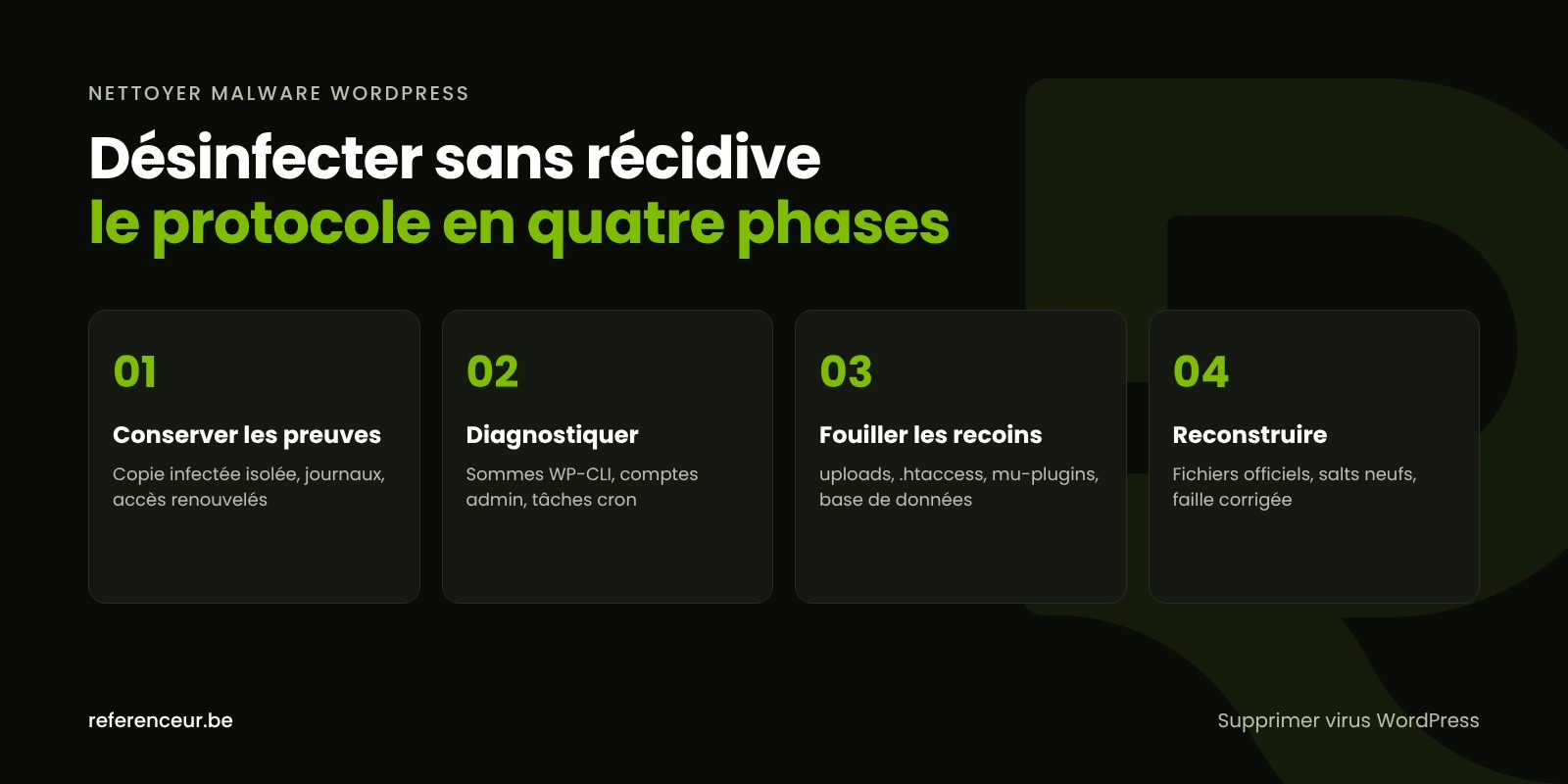
How to Remove Malware From WordPress Without Reinfection
Trying to remove malware from WordPress with a single click is often how the next infection begins. The scanner deletes three suspicious files, the site looks healthy again, and a week later the same code is back, because a backdoor stayed hidden in the media library, the database, or a scheduled task.
Référenceur, a European digital marketing agency with offices in Belgium and Luxembourg, helps independent professionals, small businesses, and nonprofits carry out a complete, documented malware cleanup, handled remotely from the first diagnosis to the moment the site is back online. This guide walks through the process, the checks you can run yourself, and the steps best left to a professional or your hosting provider.
Check your WordPress site’s security: run a free initial scan right now with the tool below.
Just discovered the attack? Start with our page on what to do first when your WordPress site is hacked. For the big picture on threats and safeguards, our complete WordPress security guide is the place to go. You can also run a free security scan of your domain right here on this page.
Removing a WordPress Virus Starts With Preserving the Evidence
The first instinct (deleting everything that looks wrong) also destroys the clues. Before you remove a WordPress virus, make a full copy of the infected site (files and database), store it off the server, and label it clearly. It’s for analysis only, never for a restore.
Next, ask your hosting provider for the web server access logs and the FTP, SFTP, or SSH login records. Cross-referenced with file modification dates, they often reveal when and how the intruder got in: an outdated plugin, a reused password, or a former contractor’s account that was never removed.
Then change every credential from a clean computer: hosting control panel, FTP, database, WordPress accounts, and any email addresses tied to the site. A hacker who can still read your inbox could reset those passwords without you knowing.
WP-CLI Diagnostics: What Checksums Reveal
With SSH access, WP-CLI, the official WordPress command-line interface, gives you a reliable first assessment. According to the WP-CLI documentation, the core check compares every installed file against the checksums WordPress.org publishes for your version.
wp core verify-checksums --include-root
wp plugin verify-checksums --all
wp user list --role=administrator
wp cron event list
The --include-root flag extends the check to unexpected files sitting in the root directory. Plugins from the WordPress.org directory are compared against their official release; a premium plugin or custom-built one isn’t covered by this test and should be downloaded again from its developer or reviewed by hand.
The last two lines list the administrator accounts and cron events. An admin nobody recognizes, or an event with a name that makes no sense, has to be dealt with before any reinstall, or it will simply recreate the problem.
Six Places Where Malicious Code Survives
Checksums don’t cover media uploads, configuration files, or must-use plugins. Those are exactly the hiding spots attackers favor to come back after a superficial cleanup.
| Where to Look | Common Symptom | Recommended Check |
|---|---|---|
| wp-content/uploads folder | A PHP script named like an image or cache file | List the .php files: there shouldn’t be any |
| Every .htaccess file | A rewrite rule pointing to a hidden script or a third-party domain | Compare against the standard WordPress block, folder by folder |
| wp-config.php | An unfamiliar include line or code added at the very top | Read it end to end, keeping only settings you can identify |
| wp-content/mu-plugins | An active plugin missing from the usual plugin list | Open the folder and account for every file |
| Parent and child theme | Additions to functions.php, header.php, or footer.php | Compare with the developer’s original package |
| Cron events | A task that rewrites the malware every night | WP-CLI list, then remove unknown hooks |
find wp-content/uploads -type f -name "*.php"According to the WordPress documentation, files placed in wp-content/mu-plugins load automatically, can’t be deactivated from the admin dashboard, and don’t show update notifications. That makes it an ideal hiding place for anyone who wants to stay under the radar.
In these files, watch for long, unreadable strings combined with base64_decode, eval, or gzinflate. These functions also have legitimate uses, so quarantine the file rather than deleting it before you understand what it does.
Clean the Database Without Breaking the Site
Spotless files aren’t enough if the database keeps reinjecting the code. In the wp_options table, make sure siteurl and home match your domain exactly and that no option loads a script from somewhere else.
Then comb through wp_posts: script or iframe tags, links to casinos or online pharmacies, or pages full of Japanese characters. On a multilingual site (English and Spanish, for instance), check every language version, because the injection sometimes hits only one.
For user accounts, write down the creation date of each suspicious account before deleting it: it helps pinpoint when the breach happened. The full process is covered in our article on a compromised WordPress admin account.
Rebuild the Site on a Clean Foundation
Once the inventory is complete, you replace components instead of repairing them file by file. The order matters: each step assumes the previous one is clean.
- Core: overwrite wp-admin and wp-includes with an official copy from WordPress.org, matching your installed version.
- Plugins: delete each plugin folder and reinstall from WordPress.org or the developer, never from a “nulled” copy.
- Theme: reinstall the original parent theme and review the child theme line by line.
- Clutter: remove inactive themes and plugins, old copies of the site, and forgotten test subfolders.
- Security keys: regenerate the salts with
wp config shuffle-salts, which logs out every session, including the intruder’s. - Final check: rerun the WP-CLI checks, then test the site in a private window, on mobile, and in every language.
Let your team know everyone will need to log in again. If the site is too old or too patched together for a reliable reinstall, a WordPress website redesign can take less effort than cleaning it over and over.
Then close the hole: update WordPress core, plugins, theme, and PHP (our article on WordPress PHP versions explains why it matters), turn on two-factor authentication, and add define( 'DISALLOW_FILE_EDIT', true ); to wp-config.php. You’ll find the remaining settings in our WordPress hardening guide.
Breach Notification and Incident Reporting in the U.S.
If your site collects personal information (contact forms, restaurant reservations, a nonprofit’s member portal, online orders), a hack may trigger legal obligations. Every U.S. state has a data breach notification law, and these laws can require you to notify affected individuals and, in some states, the attorney general or other regulators. Definitions of personal information, risk thresholds, and deadlines vary from state to state.
Depending on your industry and where your customers live, other rules may apply too, such as the California Consumer Privacy Act (CCPA, as amended by the CPRA). The FTC’s Data Breach Response guide for businesses is a good starting point, and our article on what to do after a WordPress data breach details each step. This guide is not legal advice: talk to a qualified attorney about your specific situation.
On the cybersecurity side, you can report incidents to CISA (the Cybersecurity and Infrastructure Security Agency), and cybercrime involving fraud or extortion to the FBI’s Internet Crime Complaint Center (IC3). Contacting local law enforcement is a separate step, useful if you’ve suffered a financial loss or received a ransom demand.
A Fully Remote Cleanup Over Video Call
Cleaning up an infected WordPress site doesn’t require anyone on-site: everything runs through video calls and delegated access. A kickoff call lets us list every access point, decide what to keep as evidence, and split responsibilities with your hosting provider.
The cleanup then happens over a shared screen if you want to follow every step, or independently using temporary credentials that you revoke at the end. You receive a report listing the files removed, the accounts deleted, and the most likely vulnerability.
A recorded training session then shows your team the right habits, and a monthly check-in with reporting can keep updates and backups on track. Référenceur is a European agency that works with U.S. businesses remotely, so the method is the same wherever you’re based; our hacked WordPress site repair page describes the service in detail.
WordPress Malware Removal: Frequently Asked Questions
Isn’t Restoring Yesterday’s Backup Enough?
Rarely. Malicious code can lie dormant for weeks before it shows itself, which means yesterday’s backup contains the same backdoor. Even with a copy that predates the breach, the original vulnerability is still open and the stolen credentials still work. Restoring only makes sense after you’ve dated the attack, fixed the vulnerability, and changed every credential.
Can My Hosting Provider Handle It?
Some hosts scan files or suspend an infected site to protect their other customers, but your WordPress content is generally your responsibility. At a minimum, ask them for the logs, a server-side backup, and a list of recently modified files. With that information, you can remove malware from WordPress far more precisely.
Can a Security Plugin Remove a WordPress Virus on Its Own?
It detects known signatures, but not necessarily brand-new code, a script injected into the database, or an admin account that looks legitimate. To remove a WordPress virus for good, combine a scanner, WP-CLI checksums, a manual review of the sensitive hiding spots, and a clean reinstall. After that, the plugin becomes a monitoring tool, not a complete solution.
Do I Have to Notify Anyone If My Site Was Infected?
It depends on what data was exposed and where the affected people live. If the intruder could access personal information such as names combined with account credentials or payment details, state breach notification laws may require you to notify individuals and sometimes regulators. A simple brochure site with no forms or customer accounts is a very different case from an online store. Get advice from a qualified attorney on your specific situation.
Where Should I Report the Attack?
CISA accepts incident reports, which helps it track active campaigns, and the FBI’s IC3 takes complaints about internet crime, including fraud and extortion. If the attack causes you a financial loss or comes with a ransom demand, filing a report with local law enforcement is a separate step. Keep the infected copy and your notes for both.
Why Does My Site Get Reinfected After Every Cleanup?
Almost always because something was missed in the inventory: a script in the uploads folder, a must-use plugin, a cron job, an admin account, or an FTP password that was never changed. The original vulnerability, often an outdated plugin, may also still be open. To remove malware from WordPress without a relapse, the full inventory has to come before the reinstall.
Several Sites Share My Hosting Account. What Should I Do?
Treat them as one incident. On a single hosting account, malware easily spreads from one installation to another, for example from your main site to a forgotten old staging copy. Delete the installations you don’t need, clean the others in parallel, and give each database its own password.
Not sure your site is clean? Run a free security scan of your WordPress site:
Does malicious code keep coming back on your WordPress site? Book a short video call: we’ll review the symptoms, the access you have, and the cleanup process that fits your installation.