 0498 70 98 60
How to Update WordPress Core, Plugins, Themes, and PHP Without Breaking Your Site
Putting off a WordPress update week after week for fear of breaking the site is a common habit, and it’s exactly how a publicly known vulnerability stays exploitable for months. WordPress core, plugins, themes, and your PHP version each follow their own schedule, and every delay widens the door for attackers.
Référenceur, a European digital marketing agency with offices in Belgium and Luxembourg, sets up scheduled, tested, and documented updates for small businesses, retailers, and nonprofits, and steps in when an infected WordPress site needs to be cleaned before anything gets upgraded.
Check your WordPress site’s security: run a free initial scan right now with the tool below.
This article is part of our WordPress security guide. It breaks down what WordPress handles on its own, what remains your responsibility, and how to update WordPress without putting your business at risk.
What Updates Automatically, and What Waits for Your Go-Ahead
According to the WordPress documentation, minor core releases (maintenance and security) install automatically by default, and so do translation files. Since WordPress 5.6, new installations also receive major releases automatically; an older site, however, keeps its original setting until someone changes it.
For plugins and themes, the decision is yours. According to the auto-updates documentation, since WordPress 5.5 administrators can turn them on plugin by plugin and theme by theme. By default they run twice a day, and WordPress sends an email when an update succeeds or fails.
| Component | Default Behavior | Your Role |
|---|---|---|
| Core, minor releases | Installed automatically | Make sure no constant or hosting setting is blocking them |
| Core, major releases | Automatic on recent installations, not always on older ones | Check the setting and plan a backup and a test |
| Plugins and themes from the official directory | Auto-updates turned on case by case | Decide what can be automated and monitor the rest |
| Multilingual or ecommerce plugin | Depends on the developer and often on a license | Test first: your translations and payments depend on it |
| PHP version | Managed by your host, never by WordPress | Ask for a migration to a supported branch |
The WP_AUTO_UPDATE_CORE constant in wp-config.php can change this behavior. Go to Dashboard > Updates to see what’s actually enabled on your installation.
PHP: The Link Everyone Forgets
Your PHP version depends on your hosting provider, not on WordPress. According to php.net’s supported versions page, as of late October 2026, branches 8.2 through 8.5 are still supported. The 8.2 branch now receives security fixes only, through December 31, 2026; 8.3 receives them through December 31, 2027.
WordPress.org, for its part, recommends PHP 8.3 or later, along with MariaDB 10.11 or MySQL 8.0 at minimum. A server still running an end-of-life branch no longer gets patches, even if every one of your plugins is fully up to date.
Tools > Site Health shows your current version. Before you request a migration, test the site on a staging copy: an older plugin can throw errors. Our article on securing WordPress through your PHP version covers the process in detail.
How to Update WordPress Plugins Safely, Step by Step
If your site takes reservations, sells online, or generates quote requests, updates need a little planning. This sequence keeps the risk low without adding much work.
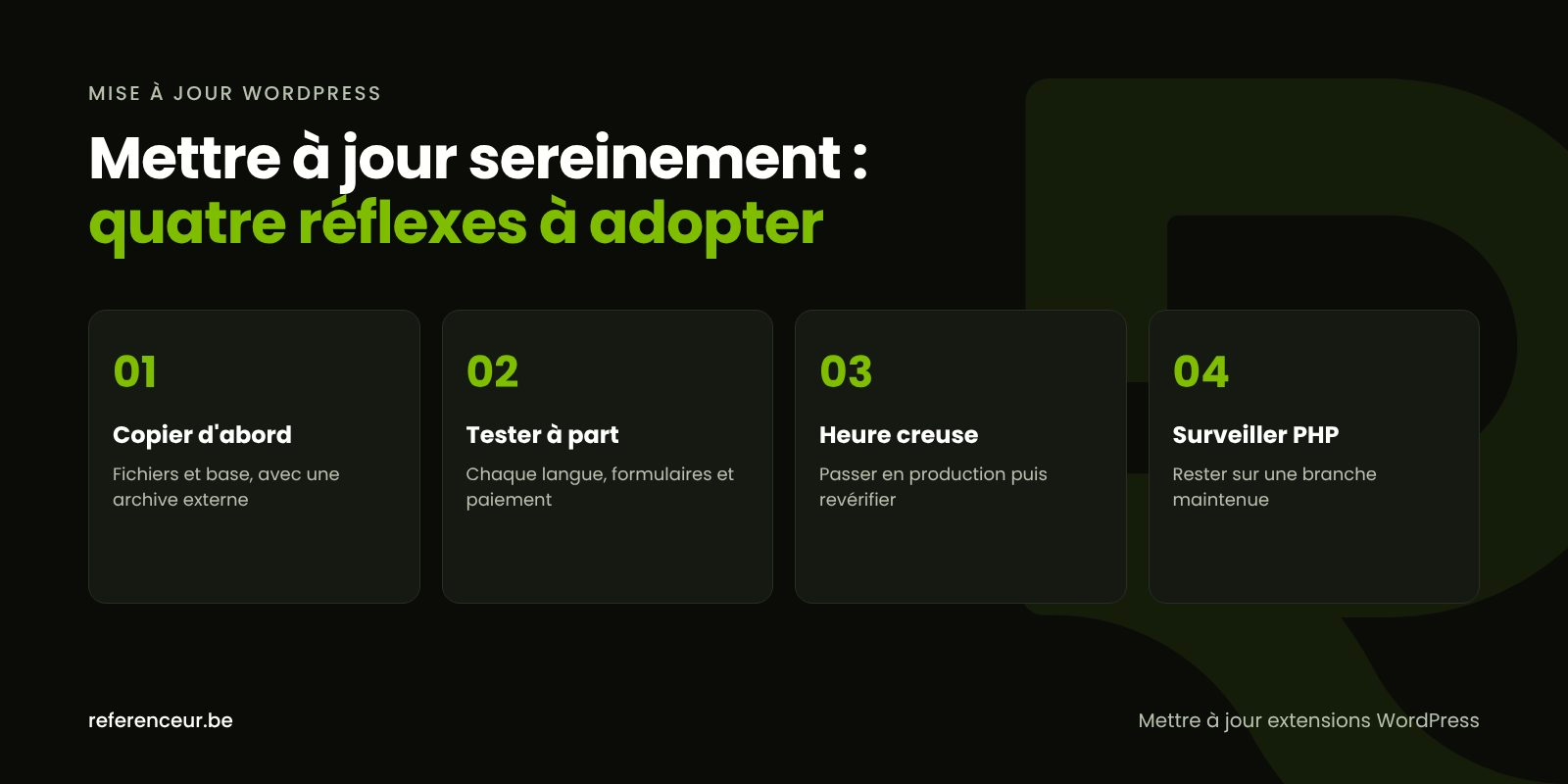
- Back up your files and database, with an off-server copy, following our WordPress backup guide.
- Read the changelog for critical plugins: store, payments, forms, page builder, multilingual.
- Apply updates on staging first, on a copy that isn’t indexed by search engines.
- Test your key user journeys in every language: forms, cart, checkout, member area, mobile display.
- Push to production during a low-traffic window, then run the same checks again.
- Record the installed versions and any issues in a maintenance log.
wp plugin list --update=available
wp plugin update --all --dry-run
wp theme update --all
wp core update
With WP-CLI, the first command lists plugins with pending updates, and the --dry-run flag shows what would change without applying anything. Without command-line access, you can do the same from the dashboard. What matters is that you update WordPress plugins and themes on a regular schedule, not once a year.
What to Do When an Update Breaks Something
If an update triggers a fatal error, WordPress switches to recovery mode: it emails a special login link to the admin email address so you can deactivate the plugin at fault. Make sure someone still reads that inbox.
If you can’t reach the dashboard, renaming the plugin’s folder over SFTP deactivates it. If the problem is broader, restore the copy you made just before and report the conflict to the developer. Don’t freeze a plugin on an old version for long: the next security fix would never reach you.
An abandoned plugin needs to be replaced. The official directory flags plugins that haven’t been tested with the latest major releases; our page on vulnerable WordPress plugins explains how to spot them.
Update Cadence, Monitoring, and Who Owns What
Security fixes should go in as soon as possible; feature updates can follow a weekly or monthly schedule depending on your business. To stay informed, follow the security advisories published by CISA (the Cybersecurity and Infrastructure Security Agency) and its Known Exploited Vulnerabilities catalog, which lists flaws that attackers are actively using.
The key is having one clearly accountable owner: you, your agency, or your managed hosting provider. Put in writing who applies updates, who tests, who keeps the backups, and who gets alerted when a critical vulnerability drops. Without a designated owner, everyone assumes someone else is handling it.
If your site already shows signs of a hack, don’t start with a blanket WordPress update: updating doesn’t remove a backdoor hidden in your uploads or database. Cleanup comes first, followed by WordPress hardening.
Maintenance Managed Over Video Call
Référenceur works with U.S. businesses remotely, and for this kind of work that’s no drawback: everything happens over video calls, at a time that works for both time zones. A kickoff session inventories your plugins, themes, PHP version, and backups.
The first updates are done over a shared screen, on staging and then in production, so you understand every step. Your team keeps a recorded training session, and a monthly check-in reviews the maintenance log.
This remote approach works the same wherever your business is located. You can also run a free security scan right here on this page to spot components that are falling behind.
WordPress Updates: Frequently Asked Questions
Can I turn on auto-updates for every plugin?
For simple, well-maintained plugins, yes, as long as you have daily backups and site monitoring in place. For a store, a payment gateway, a page builder, or a multilingual plugin, a WordPress update tested on staging is still the safer route. Minor core releases, on the other hand, should stay automatic.
Can an update break my multilingual site?
Yes, especially if the translation plugin, the theme, or the page builder changes at the same time. A language version can lose its page connections or display untranslated text. That’s why you test on staging, in every language, before going to production, with a full backup made right beforehand so you can roll back if needed.
Where can I find my site’s PHP version?
Under Tools > Site Health, the Info tab shows your PHP version and your database version. Compare it with php.net’s supported versions page. If your branch is no longer supported, ask your hosting provider to migrate you, after testing the site on staging with the new version.
Should I update WordPress plugins that are deactivated?
Better to delete them. A deactivated plugin still sits on the server, and its files can be exploited if a vulnerability affects them. Rather than trying to update WordPress plugins you’ve forgotten about, clean house: less installed code means fewer updates to track and less risk to watch.
Why should I avoid “nulled” plugins?
These pirated copies of paid plugins don’t receive official patches and sometimes contain malicious code from the moment you install them. They’re also a common cause of reinfection after a cleanup. Replace them with the official version and an active license, or with a well-maintained alternative from the WordPress.org directory.
Who should handle updates: my host or my agency?
It depends on your contract. Standard hosting covers the server and sometimes PHP, rarely plugins. A managed WordPress plan or a maintenance agreement can cover the full WordPress update process. Put in writing who applies updates, who tests, and who keeps the backups, so no task falls through the cracks.
Not sure your site is clean? Run a free security scan of your WordPress site:
Are pending updates piling up on your site? Book a free video call: we’ll review your plugins, themes, and PHP version with you, then set up a maintenance process that fits your business.