 0498 70 98 60
Technical SEO Audit Checklist: 40 Checks for 2026
Updated October 31, 2026
Great content can’t rank if search engines can’t crawl it, render it, or decide which version to index. A technical SEO audit finds the problems that silently cap your organic traffic: pages blocked by accident, duplicate versions competing with each other, redirects that lead nowhere, slow templates, and structured data that no longer matches the page.
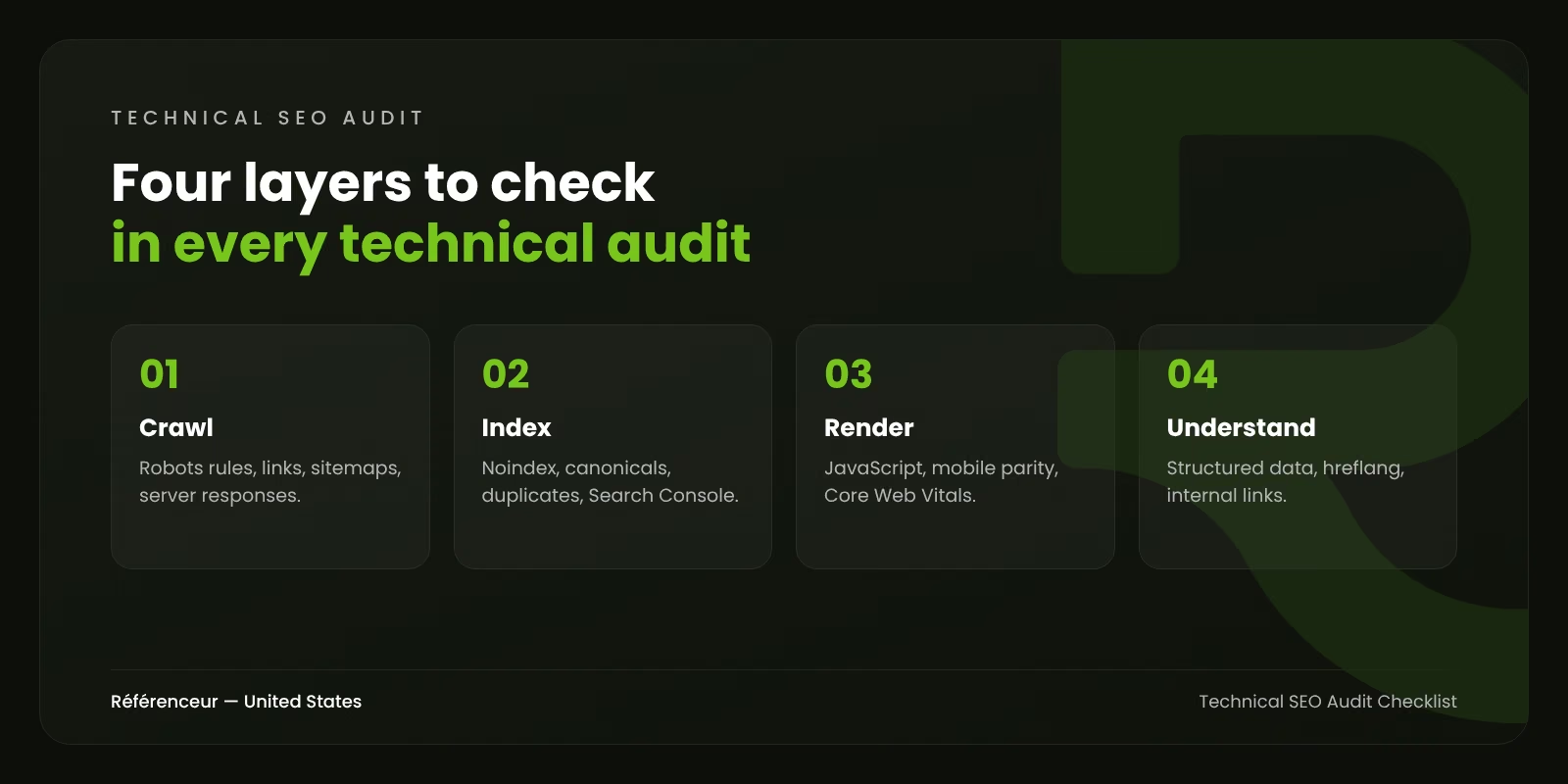
This technical SEO audit checklist is the one we use as a starting point, organized by layer: crawling, indexing, rendering, performance, site structure, structured data, and international SEO. You don’t need expensive tools to begin. Google Search Console, a crawler, and a browser go a long way.
Before You Start: Tools and Baseline
Gather these first:
- Google Search Console access for the domain property, which covers all subdomains and protocols.
- A site crawler that can render JavaScript, to see your site the way a search engine does.
- Google Analytics 4 or your analytics tool, to see which pages bring traffic and conversions.
- Server log files, if available, especially for large sites.
- A list of your most important pages: top landing pages, key service or product pages, and pages that generate leads or sales.
Record your baseline: indexed pages, organic clicks and impressions from Search Console, and Core Web Vitals status. You’ll want to measure the effect of your fixes.
1. Crawlability and Indexing: Can Google Reach Your Pages?
Crawlability and indexing come first, because nothing else matters if pages aren’t in Google’s index.
- Check robots.txt. Make sure it doesn’t block important sections, CSS, or JavaScript files. Remember: robots.txt controls crawling, not indexing. A blocked URL can still appear in search results if other pages link to it.
- Find accidental noindex tags. Crawl the site and list every page with a noindex meta tag or X-Robots-Tag header. Staging settings left on after a launch are a classic cause of traffic loss.
- Don’t combine noindex and robots.txt blocking. If Google can’t crawl a page, it can’t see the noindex tag.
- Review server response codes. Important pages should return 200. Look for unexpected 4xx and 5xx errors and pages that return 200 while showing “not found” content (soft 404s).
- Check internal links to important pages. Pages with few or no internal links (orphan pages) are crawled less and rank poorly.
- Worry about crawl budget only if it applies. Google’s guidance says crawl budget is mainly a concern for very large sites, roughly a million or more unique pages, or sites with 10,000+ pages that change daily. For most businesses, it’s not the issue.
2. The Search Console Page Indexing Report
The Search Console page indexing report shows which URLs Google has indexed and why others aren’t. Review each reason:
- “Excluded by noindex tag”: confirm every URL listed is supposed to be excluded.
- “Blocked by robots.txt”: confirm these are intentional.
- “Duplicate without user-selected canonical” and “Duplicate, Google chose different canonical than user”: investigate why Google disagrees with your canonical choice.
- “Crawled, currently not indexed”: often a quality or duplication signal. Improve or consolidate these pages.
- “Discovered, currently not indexed”: Google knows the URL but hasn’t crawled it yet. Common on new or weakly linked pages.
- “Page with redirect” and “Not found (404)”: check that these are expected and that no important links point to them.
- Use URL Inspection on key pages to see the indexed version, the canonical Google selected, and the rendered HTML.
3. XML Sitemap Best Practices
- Submit a sitemap in Search Console and reference it in robots.txt.
- Include only canonical, indexable URLs that return 200. No redirects, no noindex pages, no 404s.
- Respect the limits: 50,000 URLs or 50MB uncompressed per sitemap file. Use a sitemap index for larger sites.
- Keep lastmod accurate. Google uses the lastmod date when it’s consistently reliable, and ignores the priority and changefreq values.
- Split sitemaps by type (pages, posts, products) to spot indexing gaps by section.
4. Canonicals, Duplicates, and Redirects
- One canonical URL per piece of content. Check for duplicates caused by HTTP and HTTPS, www and non-www, trailing slashes, uppercase letters, and tracking parameters.
- Self-referencing canonical tags on indexable pages, pointing to the exact preferred URL.
- Remember canonicals are hints. If internal links, sitemaps, and redirects contradict your canonical, Google may pick a different URL.
- Use 301 redirects for permanent moves, and update internal links to point directly to the final URL.
- Eliminate redirect chains and loops. Google follows up to 10 redirect hops, but each one wastes crawl resources and slows users.
- Map redirects after any migration or redesign, and recheck high-value old URLs, especially those with backlinks.
- Control faceted navigation and parameters on ecommerce and listing sites, so filter combinations don’t create thousands of thin URLs.
5. Rendering, Mobile, and JavaScript
Google completed its move to mobile-first indexing years ago: it crawls and indexes sites primarily with a smartphone user agent.
- Check mobile and desktop parity. Content, links, structured data, and metadata should be the same on mobile. Anything missing on mobile may be invisible to Google.
- Test JavaScript rendering. Compare the raw HTML with the rendered HTML in URL Inspection. Critical content and links should be present after rendering, and ideally in the initial HTML.
- Use real links. Navigation should use standard anchor tags with href attributes, not click handlers that Google can’t follow.
- Don’t block resources that pages need to render.
- Avoid content that loads only after user interaction, such as text that appears only after a click, for anything you want indexed.
6. Performance and Core Web Vitals
- Open Search Console’s Core Web Vitals report, which groups URLs by pattern, to find the templates that fail.
- Check field data, not just lab tests: Largest Contentful Paint within 2.5 seconds, Interaction to Next Paint within 200 milliseconds, and Cumulative Layout Shift below 0.1.
- Fix template-level issues first: oversized hero images, render-blocking scripts, heavy third-party tags, layout shifts from late-loading banners.
- Confirm HTTPS everywhere, with no mixed content warnings.
- Check the Security issues and Manual actions reports. A hacked site or a manual penalty overrides every other optimization.
7. Site Architecture, Structured Data, and International SEO
- Keep important pages within a few clicks of the homepage, with descriptive internal link text.
- Use breadcrumbs on deep sites, with BreadcrumbList markup.
- Validate structured data with the Rich Results Test and fix errors in Search Console’s enhancement reports. Stop spending effort on rich results Google has retired.
- Check hreflang on multilingual or multi-regional sites: reciprocal links, correct language and region codes, and an x-default where useful.
- Review title tags and meta descriptions at scale for duplicates and missing values. That overlaps with on-page work; see our on-page SEO guide.
How to Prioritize What You Find
Working through a technical SEO audit checklist usually produces a long list. Rank each issue by:
- Impact: does it affect important pages, many pages, or revenue-generating pages?
- Effort: a setting change, a template fix, or a development project?
- Risk: could it cause deindexing or a security problem?
Fix critical indexing and security issues immediately. Then tackle template-level fixes that improve many pages at once, and finally smaller page-level items. After fixes, monitor Search Console for several weeks to confirm Google has recrawled and reprocessed the affected pages.
If traffic has dropped and you’re not sure whether the cause is technical, our guide on how to tell if your SEO is still working helps separate technical issues from algorithm changes and shifts in search behavior.
Want a Professional Technical SEO Audit?
A checklist finds symptoms; experience tells you which ones matter. Our SEO agency team runs technical audits with a prioritized action plan and can work directly with your developers. We’re based in Belgium and Luxembourg and support U.S. companies remotely, walking through findings with you on a shared screen. Request a free assessment and start with your site’s biggest technical issues.
Frequently Asked Questions About Technical SEO Audits
How Often Should I Run a Technical SEO Audit?
A full audit once or twice a year works for most sites, plus a focused check after any redesign, migration, or major plugin or platform update. Large ecommerce or publishing sites benefit from continuous monitoring.
What’s the Difference Between a Technical SEO Audit and an SEO Audit?
A technical audit focuses on how search engines crawl, render, and index your site. A full SEO audit also covers content quality, keyword targeting, backlinks, and local SEO.
Does robots.txt Remove Pages From Google?
No. Robots.txt prevents crawling, not indexing. To remove a page from search results, allow crawling and use a noindex tag, or remove the page and return a 404 or 410.
Why Does Google Ignore My Canonical Tag?
Canonical tags are hints. Google may choose a different URL if internal links, sitemaps, redirects, or content signals point elsewhere, or if the pages aren’t true duplicates. Align all signals with your preferred URL.
How Long After Fixes Will I See Results?
It depends on how quickly Google recrawls the affected pages. Fixes to important, frequently crawled pages can show effects within days or weeks; deeper sections can take longer.
Do I Need a Developer for a Technical SEO Audit?
Not for the audit itself, but often for the fixes. Many issues require template, server, or code changes, so involve your developer early.