 0498 70 98 60
Google Search Console Guide: The Reports That Actually Matter in 2026
Updated October 31, 2026
Google Search Console is the only place where Google tells you directly how your site performs in its search results: which searches show your pages, how often people click, which pages Google has indexed, and what’s going wrong. It’s free, and yet many business sites either never set it up or log in only when traffic has already collapsed.
This guide explains how to use Google Search Console in practice: how to set it up properly, how to read the Performance report, what the 2025 additions, such as the branded queries filter and annotations, change, and a simple monthly routine that catches problems before they cost you leads.
Setting Up Google Search Console the Right Way
Domain Property vs. URL-Prefix Property
Search Console offers two property types:
- Domain property: covers every subdomain (www, shop, blog) and both HTTP and HTTPS versions in one place. It requires verification through a DNS record at your domain registrar or DNS host. This is the best choice for most businesses.
- URL-prefix property: covers only URLs starting with a specific address, such as https://www.example.com/. It can be verified several ways, including an HTML file, a meta tag, Google Analytics, or Google Tag Manager. Useful for monitoring a specific section, or when you can’t edit DNS.
Many teams set up both: a domain property for the full picture, plus URL-prefix properties for important sections such as /blog/ or a /fr/ language folder.
Ownership and Access
Make sure the verified owner is someone inside your company, ideally through a company account rather than a former employee’s personal login. Give agencies and freelancers “Full” or “Restricted” user access, not ownership. When a relationship ends, you keep your data.
Submit Your Sitemap
Under Sitemaps, submit your XML sitemap URL. Search Console then shows when Google last read it and how many URLs it discovered.
The Search Console Performance Report
The Search Console Performance report is where you’ll spend most of your time. It shows four metrics for Google Search:
| Metric | Meaning | Watch out for |
|---|---|---|
| — | — | — |
| Clicks | Clicks from Google Search results to your site | Seasonal patterns; compare with the same period last year |
| Impressions | Times a URL from your site appeared in results a user saw | Rising impressions with flat clicks may signal lower CTR or more zero-click results |
| CTR | Clicks divided by impressions | Varies by position, query type, and result layout |
| Average position | Average top position of your site in results | An average across many queries; read it per query or page, not site-wide |
You can filter and compare by query, page, country, device, search appearance, and date. Data goes back 16 months. The interface shows up to 1,000 rows per table; for larger sites, the bulk data export to BigQuery provides the complete dataset.
A note on AI features: Google’s documentation states that traffic from AI Overviews and AI Mode is included in the overall Web search data in Search Console. It isn’t reported as a separate line, so analyze trends by query and page rather than expecting an “AI Overviews” filter.
Practical Analyses Worth Running
- Pages losing clicks. Compare the last three months with the previous period, sort by click difference, and investigate the biggest drops.
- High impressions, low CTR. Queries where you appear often but rarely get clicked are candidates for better title tags and meta descriptions.
- Position 5 to 15 queries. Pages ranking on page one’s lower half or page two often need only modest improvements to gain significant clicks.
- Query-to-page mismatches. If Google ranks a blog post for a commercial query that your service page should own, strengthen the service page and adjust internal links.
- Country and device splits. For businesses targeting U.S. customers, filter by United States, and compare mobile with desktop.
What’s New: Brand Filters, Annotations, and More
Search Console gained several useful features in late 2025:
- Search Console branded queries filter (November 2025). Search Console can automatically separate branded queries (those containing your brand name or variations) from non-branded ones, for eligible sites. This matters because brand searches usually reflect existing awareness, while non-branded growth shows whether SEO is bringing in new demand. It’s one of the most useful ways to judge whether SEO work is paying off.
- Custom annotations (November 2025). You can add notes to Performance charts, such as “site migration,” “new service pages launched,” or “Google core update.” Months later, these notes save hours of guessing why a line moved.
- Weekly and monthly views (December 2025). Aggregating data by week or month smooths daily noise and makes trends easier to read.
- Experimental features (December 2025). Google added an AI-powered way to configure Performance reports by describing the analysis you want in plain language, and, experimentally, social channel data in the Insights report. Treat experimental output as a starting point and double-check filters.
If your site is redesigned or migrated, annotate the launch date and watch the Performance and Page indexing reports closely for several weeks. Our article on website redesign SEO covers the migration side.
Page Indexing and URL Inspection
Page Indexing Report
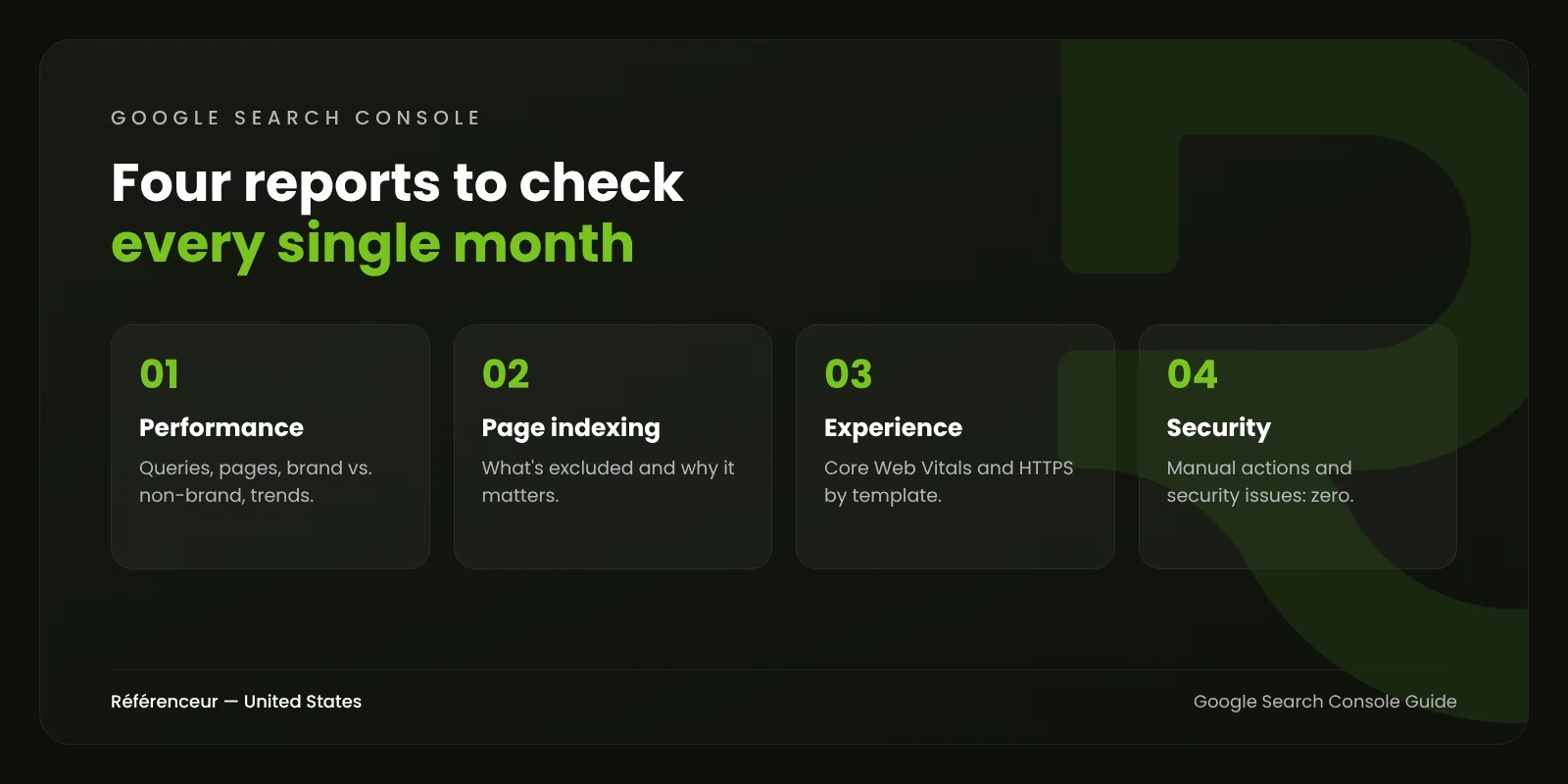
This report lists how many of your known URLs are indexed and groups the rest by reason: excluded by noindex, blocked by robots.txt, duplicates, redirects, not found, “Crawled, currently not indexed,” and “Discovered, currently not indexed.”
Not every excluded URL is a problem. Redirected URLs, intentional noindex pages, and parameter duplicates are normally excluded. What matters is whether important pages appear in those lists. Filter the report using your sitemap to focus on URLs you actually want indexed.
URL Inspection Tool
Paste any URL from your property to see:
- Whether it’s indexed, and when Google last crawled it.
- The canonical URL you declared and the one Google selected.
- Whether the page was crawled as a smartphone.
- The rendered HTML and resources, through the live test.
- Detected structured data and any errors.
After publishing or significantly updating an important page, you can request indexing. It doesn’t speed up indexing for every page, and there’s a quota, so use it for pages that matter, not your whole site.
Experience, Enhancements, and Security Reports
- Core Web Vitals: groups URLs by status (good, needs improvement, poor) for mobile and desktop, based on real-user data. Fix by template, not page by page.
- HTTPS: flags pages served without HTTPS.
- Enhancements: shows valid items and errors for structured data types Google supports, such as breadcrumbs, products, and videos. Reports for retired rich results disappear over time.
- Manual actions: if a Google reviewer has penalized your site for spam policy violations, it appears here. If you ever see one, our guide to Google penalty recovery walks through the steps.
- Security issues: hacked content, malware, or deceptive pages. Any entry here is urgent.
Note that Google retired the Mobile Usability report and the standalone Mobile-Friendly Test in December 2023. For mobile checks, use Lighthouse in Chrome or PageSpeed Insights.
Links and Crawl Stats
The Links report shows your top linking sites, most linked pages, and top anchor text. It’s a sample, not a full backlink index, but it’s useful for spotting your most valuable pages and unexpected link patterns.
Under Settings, the Crawl stats report shows how often Googlebot requests your pages, response times, and response codes. Spikes in server errors or slow responses here often explain crawling and indexing problems.
A Monthly Google Search Console Routine
Spend 30 to 45 minutes once a month:
- Check Manual actions and Security issues. Both should be empty.
- Review the Performance report for the last 28 days vs. the previous period and the same period last year, using the branded queries filter to separate brand from non-brand.
- Find opportunities: queries in positions 5 to 15, and pages with high impressions but low CTR.
- Review Page indexing for important URLs that dropped out of the index.
- Check Core Web Vitals for new failing URL groups.
- Add annotations for anything that changed on the site that month.
- Write down three actions for the following month.
Suspect a broader decline? The questions in our article Is My SEO Still Working? help you interpret what the data shows.
Need Someone to Read the Data With You?
Search Console is free, but turning its data into decisions takes time and experience. Our SEO agency team uses it as the backbone of every audit and monthly report. From our offices in Belgium and Luxembourg, we work with U.S. companies remotely and can review your property with you on a shared screen. Request a free assessment to go through your Search Console data together.
Frequently Asked Questions About Google Search Console
Is Google Search Console Free?
Yes. Google Search Console is a free service from Google for any website owner who verifies ownership of their site.
What’s the Difference Between Google Search Console and Google Analytics?
Search Console shows how your site performs in Google Search before people arrive: queries, impressions, clicks, and indexing. Google Analytics 4 shows what visitors do once they’re on your site, from all channels. You need both.
How Far Back Does Search Console Data Go?
The Performance report keeps 16 months of data. To keep longer history, export it regularly or set up the bulk data export to BigQuery.
Does Search Console Show AI Overviews Traffic?
Traffic from AI Overviews and AI Mode is included in the overall Web search data, but not reported separately. Analyze query and page trends to understand changes.
Why Doesn’t Search Console Match Google Analytics?
They measure different things. Search Console counts clicks in Google Search; GA4 counts sessions, which depend on tracking scripts, consent, and attribution. Some gap is normal.
How Long Does It Take for Data to Appear After Setup?
Performance data typically starts appearing within a few days of verification. Indexing reports can take longer to populate fully, especially for new sites.