 0498 70 98 60
How to Secure Your WordPress Site: 12 Techniques, Including PHP Updates
Your WordPress website works. It looks good, and the leads keep coming in. So why worry about it? Because a WordPress site is never “done.” The CMS core, your plugins, your theme, and the PHP version that runs it all are constantly changing. Every update you skip leaves a door ajar.
In this article, we share the techniques we use at Référenceur to protect our clients’ websites. We also explain why the PHP version on your hosting plan is a security issue in its own right, and why an outdated site can stop working overnight.
Why WordPress Sites Are Such Popular Targets
WordPress powers a huge share of the web. That’s its strength, and it’s also what makes it a prime target: a vulnerability discovered in a popular plugin can be exploited on thousands of sites within hours by bots that scan the internet around the clock.
So hackers aren’t going after “your” site specifically. They’re looking for vulnerable sites, whatever their size. A small business, a solo professional, or a nonprofit is just as exposed as a major brand, and often more so, because nobody is watching the site as closely.
Once they’re in, the goal is almost always the same: to exploit your site and the trust Google places in it. Redirects to scam sites, indexed spam pages, malicious email campaigns, stolen form data. The consequences for you are very real: lost Google rankings, a “dangerous site” warning in browsers, a suspended hosting account, and a damaged brand.
12 Proven Techniques to Secure Your WordPress Site
Website security doesn’t come from one miracle plugin. It comes from a set of good habits. Here are the ones that actually make a difference.
Keep Everything Up to Date
- Update WordPress core. Minor releases often patch security vulnerabilities. At a minimum, turn on automatic security updates.
- Update your plugins and theme. The vast majority of exploited vulnerabilities come from plugins. A plugin that hasn’t been updated in months is a risk, even if the site “works.”
- Delete what you no longer use. A deactivated plugin is still on the server and can still be exploited. The same goes for old themes: keep your active theme and one default theme, nothing more.
- Choose actively maintained plugins. Before installing a plugin, check when it was last updated and whether it’s compatible with your version of WordPress. Steer clear of “nulled” (pirated) premium themes and plugins: they very often contain a backdoor.
Lock Down Access
- Strong, unique passwords for WordPress, hosting, FTP/SFTP, and the database, stored in a password manager.
- Two-factor authentication (2FA) on every administrator account.
- The principle of least privilege. A content writer doesn’t need an administrator account. Remove accounts belonging to former contractors or employees.
- Limit login attempts and, if possible, protect or rename the admin login URL.
Harden the Server and Configuration
- Reliable hosting with a current PHP version (more on that below), an SSL certificate, and isolation between sites.
- A web application firewall (WAF), whether at the hosting level, through a service like Cloudflare, or via a security plugin, to block attacks before they reach WordPress.
- Harden the configuration: disable file editing from the dashboard (DISALLOW_FILE_EDIT), block PHP execution in the uploads folder, protect wp-config.php, and set correct file permissions.
Plan for the Worst
- Automatic backups stored off the server, tested regularly, plus monitoring (malware scans, file change alerts, Search Console tracking). A backup that’s never been restored is just a theory.
Don’t have the time or the interest to manage all this? That’s exactly what we do. We can audit your site and take over its day-to-day maintenance and security. Let’s talk.
Plugins: The Number One Entry Point for Hackers
Every plugin adds PHP code that runs on your server, often written by a developer you don’t know. The more plugins you have, the larger your attack surface: more files, more forms, more AJAX and REST endpoints, and more updates to keep up with. A site with 40 plugins isn’t 40 times more exposed, but it only takes one vulnerable plugin to compromise the entire site, database included.
What a Vulnerable Plugin Actually Lets an Attacker Do
| Vulnerability type | Common technical cause | What the attacker does |
|---|---|---|
| Broken access control | wp_ajax_nopriv_ action or REST route with no current_user_can() check | Changes settings or creates an administrator account without logging in |
| Arbitrary file upload | No check on the MIME type or extension of the uploaded file | Drops a PHP script (web shell) into wp-content/uploads and takes over the server |
| SQL injection | Query built without $wpdb->prepare() | Reads or modifies the database: accounts, customer emails, orders |
| Stored XSS | Output displayed without escaping (esc_html(), esc_attr()) | Injects a script that redirects visitors or hijacks an administrator’s session |
| CSRF | Form or action with no nonce (wp_verify_nonce()) | Tricks a logged-in administrator into performing an action without realizing it |
| Privilege escalation | User roles or metadata editable without checks | A basic subscriber becomes an administrator |
| File inclusion / object injection | include on a URL parameter, unserialize() on external data | Executes code remotely |
High-Risk Plugins
- Abandoned plugins. No updates in a year or more, or marked “closed” on WordPress.org. Any vulnerability that’s discovered will never be fixed.
- “Nulled” plugins. Pirated premium versions downloaded from somewhere other than the developer’s site. They very often ship with a backdoor from day one, and they never receive updates.
- Plugins that changed hands. A popular plugin can be sold to a new owner. It has happened before that a new owner slipped malicious code into an update, so keep an eye on changes in authorship.
- “Swiss Army knife” plugins. A plugin that does 30 things when you use only one carries 29 features you don’t need, and that much more exposed code.
- Duplicates. Two caching, SEO, or security plugins running at the same time: conflicts, slowdowns, and double the attack surface.
- Cobbled-together code. A snippet copied from a forum into functions.php, or a custom plugin no developer has ever reviewed.
How to Choose a Plugin: A Vetting Checklist
| Criterion | Where to check | Red flag |
|---|---|---|
| Last update | WordPress.org listing or developer’s site | More than 12 months without an update |
| WordPress compatibility | “Tested up to” on the listing | A WordPress version well behind yours |
| Required PHP version | “PHP version” on the listing | No stated compatibility with PHP 8.3 or later |
| Active installations and reviews | WordPress.org listing | Few installs, recent reviews reporting unresolved bugs |
| Support responsiveness | “Support” tab on the listing | Questions left unanswered for months |
| Security track record | WPScan, Patchstack, or Wordfence Intelligence databases | Repeated vulnerabilities, or slow fixes |
| Source | Download URL | Any site other than WordPress.org or the official developer |
| Scope | Description and settings | Does far more than you need |
Clean House: Audit Your Installed Plugins
Once a quarter, review every plugin and ask one simple question: is it essential?
| Situation | Decision |
|---|---|
| Useful, maintained, up to date | Keep it and keep it updated |
| Useful, but abandoned or repeatedly vulnerable | Replace it with a maintained alternative |
| Deactivated or no longer used | Delete it (don’t just deactivate it) |
| Feature available in WordPress or your theme | Delete it and use the built-in feature |
| Premium plugin with an expired license | Renew the license or replace it: no license, no updates |
If your hosting supports it, WP-CLI speeds up this review: wp plugin list –update=available lists plugins with pending updates, and wp plugin verify-checksums –all compares files from WordPress.org plugins against the originals to catch anything a hacker has modified. Check the wp-content/mu-plugins folder too: must-use plugins don’t appear in the regular plugin list, and hackers love to hide code there.
Does your site run dozens of plugins, and you’re no longer sure what each one does? We’ll run a full audit: inventory, known vulnerabilities, PHP compatibility, and replacement recommendations. Request a free assessment.
Your PHP Version: The Invisible Engine Behind Your Site
PHP is the programming language WordPress is written in. Your hosting provider supplies the PHP version your site runs on, and it matters just as much for security as WordPress updates themselves.
Every PHP version has a limited lifespan: two years of active support, followed by two years of security fixes only. After that, it reaches end of life and gets no fixes at all, even if a critical vulnerability is discovered.
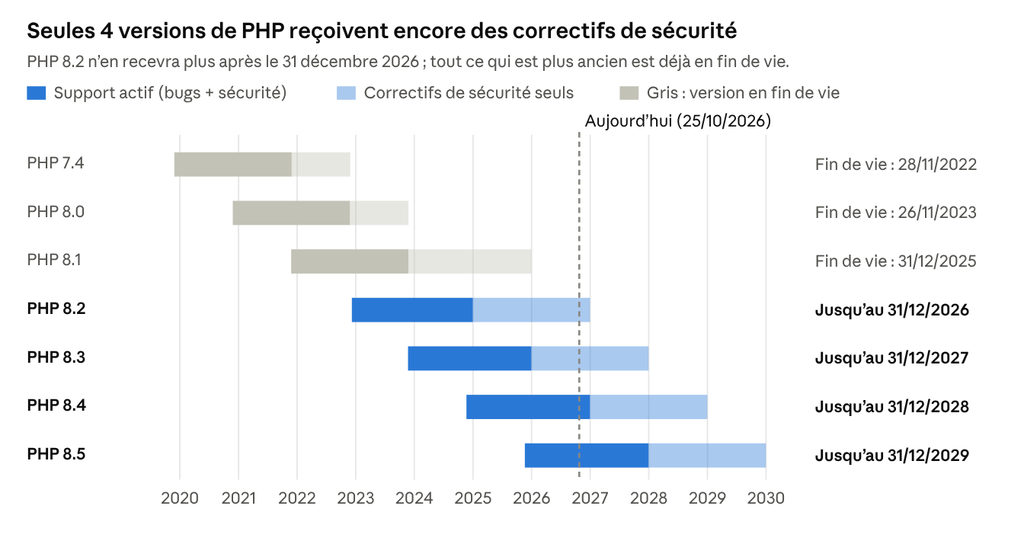
Source: official PHP release schedule, via endoflife.date · as of October 25, 2026
As of October 2026, only PHP 8.2, 8.3, 8.4, and 8.5 are still supported. PHP 8.1 stopped receiving fixes on December 31, 2025, and PHP 7.4, still common on older sites, reached end of life in November 2022.
Why an Outdated PHP Version Is Dangerous
- Vulnerabilities stay open. When a flaw is discovered in PHP, it’s only fixed in supported versions. Outdated versions stay exposed, and now the flaw is public knowledge.
- Plugins leave you behind. Developers gradually drop support for older PHP versions. Your site can then no longer receive its plugins’ security updates, so you’re stacking two risks.
- Your site is slower. Recent PHP versions perform significantly better, which affects page load time, user experience, and your organic search rankings.
Hosts Are Retiring Outdated Versions
No reputable host can keep running unpatched PHP versions forever. One after another, they remove them from their servers. They usually send a heads-up by email (a message that often goes unnoticed), then switch sites over to a newer version.
That’s when trouble starts. An older site built on a theme or plugins that are no longer maintained may simply not run on a recent version of PHP. The result: a critical error, a blank white page, or a site that won’t load, sometimes overnight. And if the site can’t run on a supported version, it eventually gets shut off.
Which PHP Version Should You Target in 2026?
Since WordPress 7.0 (May 2026), the bare minimum is PHP 7.4, but WordPress recommends PHP 8.3 or later. Our advice: PHP 8.3 or 8.4. If your site is still on 8.2, plan the upgrade before December 31, 2026. Anything older needs attention now.
How to Check Your PHP Version (and Know Whether You Need a Rebuild)
Checking your PHP version takes two minutes:
- In WordPress, go to Tools > Site Health > Info, then open the Server section: your PHP version is listed there. The Status tab will also flag an outdated version.
- In your hosting control panel (cPanel, Plesk, or a custom dashboard), look for “PHP Version” or “PHP Configuration.”
- If you have SSH access: php -v, or wp –info with WP-CLI.
Never change the PHP version directly on your live site. Test on a copy (a staging site) first, with a full backup and debug logging turned on (WP_DEBUG_LOG) to catch errors and deprecated functions.
Update or Rebuild?
| Your situation | What to do |
|---|---|
| WordPress and plugins up to date, PHP 8.2 or later | Maintenance: move to PHP 8.3 or 8.4 after testing |
| A few plugins behind, PHP 8.0 or 8.1 | Guided update: plugins first, then PHP, on a staging copy |
| Unmaintained or old custom theme, abandoned page builder | Technical audit: the theme will probably need to be replaced |
| WordPress not updated in years, PHP 7.x or 5.x | Rebuild: the site won’t run on a supported PHP version |
| Site already hacked, or hacked repeatedly | Full cleanup, then an update or rebuild depending on the site’s condition |
A site more than five to seven years old that’s never been properly maintained often lands in one of the last two rows. Bringing it up to standard can then cost more than starting over on a clean foundation that’s faster, mobile-friendly, and built for SEO. A rebuild isn’t just a security expense: it’s a chance to get your site back on par with your competitors.
Your Site May Already Be Hacked: The Telltale Signs
A hack isn’t always obvious. Attackers have every reason to stay under the radar as long as possible. Here are the most common symptoms:
| Symptom | Where to spot it |
|---|---|
| Redirects to another site, often only from Google or on mobile | Clicking through to your site from Google results on a smartphone |
| Unfamiliar pages indexed (often in Japanese, Chinese, or Russian) | A site:yourdomain.com search in Google |
| “This site may harm your computer” warning or a red warning page | Browser, Google results |
| “Security issues” alert | Google Search Console |
| Administrator accounts you didn’t create | Users screen in WordPress |
| PHP files in wp-content/uploads, files recently modified for no reason | File manager or FTP |
| Suspended site or a warning email from your host | Your inbox, hosting account |
| Site emails landing in spam, or mass spam being sent | Customer feedback, host alerts |
What to Do (and What Not to Do)
- Don’t rush to delete everything. Back up the site in its current state first: you’ll need it to analyze the attack.
- Change every password: WordPress, hosting, FTP/SFTP, and database, and regenerate the security keys in wp-config.php.
- Don’t rely on a cleanup plugin alone. It often removes the visible symptoms but not the backdoors hidden in files or the database. The site then gets reinfected a few days later.
- Find the entry point. Until it’s closed (a vulnerable plugin, a compromised password, outdated PHP), the attacker will be back.
- Ask Google to review the site once it’s clean, so the warnings are lifted.
A thorough cleanup is careful, hands-on work. The sooner it happens, the less damage your search rankings take.
How Référenceur Can Help
Securing a WordPress site takes time, discipline, and constant vigilance. That’s our everyday work. Depending on where your site stands, we can help at three levels.
| Your need | How we help |
|---|---|
| Your site has been hacked | Free assessment, manual cleanup of files and database, backdoor removal, closing the vulnerability, follow-up with your host and Google, and a written incident report. Learn more |
| You want to know where you stand | Security audit: PHP version and compatibility, plugin inventory and known vulnerabilities, user accounts, server configuration, backups, and a prioritized action plan. |
| Your site is too old | A rebuild on a clean, up-to-date WordPress foundation that’s compatible with current PHP versions, faster, and optimized for search, followed by maintenance to keep it that way. |
We’re a European agency with offices in Belgium and Luxembourg, and we work remotely with U.S. businesses over video calls and shared screens, explaining every step in plain English, without unnecessary jargon.
Don’t wait for your host to shut your site down or for Google to flag it as dangerous. Contact us for a free assessment: we’ll check your PHP version, your plugins, and your site’s security, and tell you honestly whether an update will do or it’s time for a rebuild. Request a free assessment
Frequently Asked Questions
Which PHP version should I use for WordPress in 2026? PHP 8.3 or 8.4. WordPress recommends PHP 8.3 or later, and those two versions will receive security fixes through the end of 2027 and the end of 2028, respectively.
My site runs on PHP 7.4. Is that a big deal? Yes. PHP 7.4 hasn’t received a single fix since November 2022. Your site is exposed to known vulnerabilities, and your host could retire that version at any time.
Can updating PHP break my site? It can, if your theme or some of your plugins are old. That’s why the update should always happen on a staging copy first, after a backup.
What’s the maximum number of plugins I should install? There’s no magic number. The rule: only what’s essential, maintained, and up to date. Every extra plugin is more code to keep an eye on.
Is a security plugin enough? No. It’s useful, but it doesn’t replace updates, a supported PHP version, backups, or human monitoring.
My site was hacked. What should I do first? Back up its current state, change every password, and bring in a professional for a full cleanup. Contact us: the assessment is free.